Today, blogging activity can be an alternative way to get money or as second profession. A big number of bloggers create and manage their blog to earn revenue from the internet services. Those services are like: pay per click program, Google AdSense, online reviews, and paid to blog.
Those programs are legal by law. Beside you earn money, you can understand how the online business today. The most profitable in giving us revenue and knowledge is paid blogging.
Paid Blogging asks you to write a review about someone’s sites. You can give the positive words or the negative one. However, the reason of advertiser asking you to write about them is to show the world about their service and to build a good links.
To start a paid blogging program, you don’t have to prepare your money for registration, because they are FREE. All you need to prepare is your own quality.
PayPerPost.com
These folks pioneered the “get paid to blog” concept. Besides being the most popular paid blogging network, I’ve found that they always seem to have the most job opportunities available at any given time. PayPerPost pays bloggers anywhere from $5 to over $200 per completed and approved post.
Bloggerwave.com
Although Bloggerwave is a smaller paid blogging network and lists fewer open job opportunties, their site is super blogger-friendly and easy to to navigate. Bloggers here get paid a minimum of $10 for each completed and approved post. Bloggerwave also pays on time and like clock-work.
Smorty.com
You’ll like Smorty because they pay from $6 to $100 for each post and they pay-out weekly. A great feature with Smorty is that bloggers are allowed to have multiple blogs so income earning potential is unlimited. The Pagerank of your blog along with a high Smorty smart score determines how much you can earn – up to $100 per post.
ReviewMe.com
Bloggers – get paid to review products and services on your site. You control what you review. You will be paid $20.00 to $200.00 for each completed review that you post on your site.
LoudLaunch.com
With LoudLaunch the amount you are paid per post is based on your blog ranking? LoudLaunch allows bloggers to be compensated for distributing our advertisers LoudLaunch press releases. Search through our advertisers latest press release campaigns, select campaigns aligned with your blog, post a Micro Press Release on your blog based on the advertisers campaign, and be compensated based on the exposure your blog can deliver.
BloggingAds.com
BloggingAds is different. They supply the advertisers, the text and the money, all you have to do is post the ad on your blog. We are looking for bloggers to post one-time ads on their blog sites for money.
SponsoredReviews.com
A Sponsored Review is an article you write for an advertiser. You review their products and services and then post the review on your blog. Each advertiser has his or her own requirements. Bloggers can earn anything from $10 to $500+ for each review.
BlogsVertise.com
Once approved, your blog goes into the assignment queue. The blogsvertise administrator then assigns writing tasks for what our advertisers want you to mention in your blog. The current payout rate for new accounts is $4 – $25 per entry.
PayU2Blog.com
If your blog meets our requirements then you can make money blogging in our system and you can count on Payu2blog to deliver that consistent steady income from advertising on your blog.
CreamAid.com
CREAMaid is a service that lets you meet other bloggers with similar interests, and make money while doing it. Anyone can start using CREAMaid by inserting a CREAMaid Conversation widget inside her post. When your post is selected, you will be able to instantly collect a royalty for your contribution (usually about $5).
Contextual.v7n.com
Do you own a blog? Blog publishers in the Contextual Links @ V7N Network make cash and get paid by PayPal for simply adding text links to their blog posts. Currently publishers make $10 per link.
LinkWorth.com
LinkWorth is a search engine marketing company that offers a variety of monetization options for bloggers. LinkWorth gives up to 70% of the revenue for its ads.
InBlogAds.com
If you have a blog, you can make money simply by reviewing other websites. You receive 60% of the sale price for each review.
DewittsMedia.com
Your blog must have a minimum Page Rank of 3 to be accepted. You get paid a flat fee of $10.00 per post.
LinkyLoveArmy.com
Your rate of pay to blog for this company is based on your Google’s PageRank (from $5 to $16 per post).
PayMeToBlogAboutYou.com
The process is simple! Register, look for bloggers or advertisers, negotiate back and forth via the messaging system, strike a deal, BUZZ and compensate!
BlogChex.com
Migrate your existing blog or start a new one . Refer a friend and get 5% of what the friends blog site makes. Promote your blog and get paid.
Showing posts with label Blogging. Show all posts
Thursday, April 7, 2011
Tuesday, February 22, 2011
Promoting Your Blogger blog
This is in no way a science or guarantee; it's simply a few suggestions with which many bloggers have found success.Set your blog to Send Pings. The Let search engines find your blog? setting determines whether or not your blog will be included in Google Blog Search and if it will ping Weblogs.com. If you select 'No,' everyone can still view your blog but search engines will be instructed not to crawl it. You can find these settings on the Settings | Basic page. When this setting is activated, your blog will be included in various "recently updated" lists on the web as well as other blog-related services.
Activate Your Navbar. Do this and you might start to see the effects right away! One of the features on the Blogger Navbar is a button called NextBlog - click it to visit the next Navbar-enabled blog.
Install Email This Post. If you use Email This Post on your blog, people will be able to forward your posts to friends. This may not have an immediate impact on your site stats but it enables others to publicize your blog for you.
Turn on Post Pages. By publishing every post as its very own web page with Post Pages, you ensure that your entries are way more link-able and more attractive to search engines.
Turn on your site feed. When people subscribe to your site feed in their newsreaders, they're very likely going to read your post.
Add your blog to Blogger's listings. When you add your blog to Blogger's listings by active the checkbox on the Set Displayed Blog page, it shows up in Nextblog, Recently Updated, and other places. It's like opting-in to traffic.
Write quality content and do it well. If your "style" is bad writing, worse grammar, no punctuation, and an ugly design, that might be okay for a niche crowd. But the idea here is to achieve mass appeal, so fix yourself up a bit.
Publish regular updates. Simple: the more you blog, the more traffic you'll get.
Think of your audience. A good way to build an audience is to speak to one in particular. When you keep your audience in mind, your writing gains focus. Focus goes a long way toward repeat visitors.
Keep search engines in mind. There are a few things you can do to make your blog more search engine friendly. Use post titles and post page archiving. This will automatically give each of your post pages an intelligent name based on the title of your post. Also, try to be descriptive when you blog. A well crafted post about something very specific can end up very near the top results of a search.
Keep your posts and paragraphs short. Strive for succinct posts that pump pertinent new information into the blogosphere and move on. Keep it short and sweet so visitors can pop in, read up, and click on.
Put your blog URL in your email signature. Think of how many forwarded emails you've seen in your day, and just imagine the possibilities.
Sumbit your address to blog search sites and directories. People look for blog content at Technorati every day, are you on their list? You should be. Submit your blog's url to Technorati and any other site of that ilk you come across.
Link to other blogs. Links are the currency of the blogosphere and it takes money to make money so start linking.
Install a blogroll. It's a very simple yet effective social networking scheme and it has the same result as a simple link if not stronger: traffic! So if you don't have one yet, sign up for a blogroll and get that link-list going.
Be an active commenter. This is in the same vein as linking. Most comment systems also provide a way for you to leave a link back to your blog which begs a visit at the very least. So if you feel inspired, leave a comment or two in your blog travels. It behooves you.
Enable Following on your blog. Following a is a great way to keep your friends updated on the latest activity on your blog. New blogs will have this blog feature enabled by default, but for older blogs you will have to enable it from the Design | Page Elements tab.
Monday, February 21, 2011
If your blog contains adult content
If your blog contains adult themes or language, you may want to consider choosing to have a Content Warning page appear before readers can enter your blog. A Content Warning page will warn visitors that some may consider the material on your blog objectionable and will give them the chance to either continue to your blog or to cancel; this is especially useful if you would like to keep minors from accidentally stumbling upon your blog.
To add a Content Warning page to your blog, just toggle the setting titled, "Adult Content?" in your Settings | Basic tab.
* Please note that if your blog contains adult imagery, Blogger may apply the Content Warning page to your blog even if you haven't altered your settings.
To add a Content Warning page to your blog, just toggle the setting titled, "Adult Content?" in your Settings | Basic tab.
* Please note that if your blog contains adult imagery, Blogger may apply the Content Warning page to your blog even if you haven't altered your settings.
Friday, February 4, 2011
Blogger Android App
Have you ever wanted to write up a quick blog post on the go? Now there is an easy way to do this on your Android phone! The first version of the Blogger Android App is released today. Using the app you can easily compose a post, attach a photo that you just took with your phone, and either save it as a local draft for later or immediately publish it to your blog. If you are an Android user, you can start using the Blogger app today by downloading it for free from the Android Market.
Feature highlights
Feature highlights
- Multiple accounts and blogs: You can easily switch between different accounts and blogs that you have author rights to. Simply choose your account and blog and you are all set to go.
- Write and save/publish: You can write a post, assign labels, and then either save it as a draft or immediately publish it. Saving as draft is handy if you need to wait until you have Internet connectivity.
- Photos from camera and gallery: If you see something interesting, you can take a photo directly from the app and include it in the blog post. You can also browse your gallery to include the ones you like.
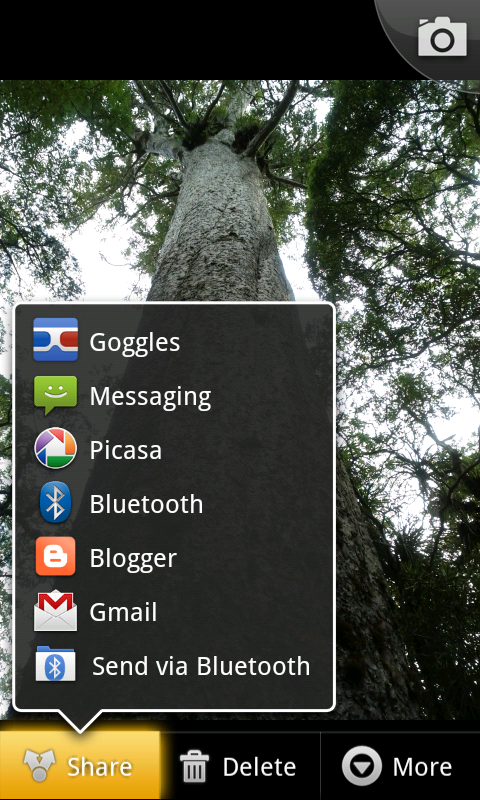
- Sharing to Blogger from gallery or browser: Blogger is one of the available sharing options. If you come across a photo in the gallery, or a website while browsing, you can share the content to the Blogger app directly from the sharing menu.
- Share location: You can share your location by activating the location bar and selecting the correct location. This information will be included in your post.
- View saved/published posts: By switching to the List View, you can view all your drafts and published posts that you wrote using the app. By performing a long-press on a published post you can invoke a menu that includes the option to view your post in a browser.
Saturday, September 11, 2010
Blogging from iGoogle and Gmail
The Blogger Posting gadget makes it easy to post to your blog from the convenience of Gmail or your iGoogle homepage.
To add the Blogger Posting Gadget to your iGoogle page, simply click this button:

Then click the blue "Add to Google" button. Make sure that you're signed in with the same Google account that you use for Blogger. Once you've added the Blogger Posting Gadget you will see the gadget on your iGoogle page:
To add the Blogger Posting Gadget in Gmail, you'll first have to enable the Add Gadget by URL lab feature from your settings:
Once you've enable this Labs feature, then you can add the posting gadget by simpling entering its URL into the Gadget tab in your Settings. Here's the URL:
In the top right corner of the gadget you will see the title of your blog. If you have more than one blog, there will be a drop-down menu in the corner so you can select the blog you'd like to post to. You can then enter a title and write a post. You also have the option to add labels to your post as well. Once you have finished writing your post, click "Publish" to publish your post or click "Save Draft" to save your post back to Blogger without publishing it.
Tips:
To add the Blogger Posting Gadget to your iGoogle page, simply click this button:
Then click the blue "Add to Google" button. Make sure that you're signed in with the same Google account that you use for Blogger. Once you've added the Blogger Posting Gadget you will see the gadget on your iGoogle page:
To add the Blogger Posting Gadget in Gmail, you'll first have to enable the Add Gadget by URL lab feature from your settings:
Once you've enable this Labs feature, then you can add the posting gadget by simpling entering its URL into the Gadget tab in your Settings. Here's the URL:
http://www.blogger.com/gadgets/post.xml
In the top right corner of the gadget you will see the title of your blog. If you have more than one blog, there will be a drop-down menu in the corner so you can select the blog you'd like to post to. You can then enter a title and write a post. You also have the option to add labels to your post as well. Once you have finished writing your post, click "Publish" to publish your post or click "Save Draft" to save your post back to Blogger without publishing it.
Tips:
- The gadget supports editing the HTML of title and body.
- If you start writing a post and decide you want to upload images or use other rich text features, just click "Save Draft". The gadget will save your post, then give you a link to directly edit the post in Blogger.
- The gadget works in Firefox, Chrome, Safari 3, Internet Explorer and on the iPhone.
Subscribe to:
Posts (Atom)