All Blogger accounts that haven’t yet made the switch will be upgraded to the new user interface. You will be able to opt-out at any time by clicking the “Switch back” link; however, all accounts will eventually be permanently upgraded, said on Google Buzz.
To help you get a better sense of what’s changed and how to navigate the new interface, check out the short video below.
If you’d like to switch to the new look at any time, you can easily do so by clicking the “Try the updated Blogger interface” link at the top of your dashboard.

Free templates for your Blogger blog [powered by Google]. Guides and tips to make your blog becomes a better blog
Wednesday, October 19, 2011

Saturday, October 15, 2011
Connect your Google Analytics account with your blog
Having a solid understanding of the traffic and visitor engagement statistics of your blog is one of the best ways to help it grow, today you can now easily connect your Google Analytics account with your blog, announced on Google Buzz.
Adding Google Analytics to your blog will give you more insight into where your visitors are coming from and help you determine which content they engage with the most. It's an easy to use, powerful, free product that is used internationally by businesses large & small.
If you already have a Google Analytics account, simply navigate to your blog’s Settings | Other tab and enter your blog's Google Analytics Web Property ID. Blogger will then insert Google Analytics code into your blog automatically, regardless of which template you're using, including mobile.
Notes:
Adding Google Analytics to your blog will give you more insight into where your visitors are coming from and help you determine which content they engage with the most. It's an easy to use, powerful, free product that is used internationally by businesses large & small.
If you already have a Google Analytics account, simply navigate to your blog’s Settings | Other tab and enter your blog's Google Analytics Web Property ID. Blogger will then insert Google Analytics code into your blog automatically, regardless of which template you're using, including mobile.
Notes:
- Google Analytics is supported on blogs using Dynamic Views, Layouts templates, and mobile templates, but not Classic templates.
- Because of the technical differences in how Blogger’s stats and Google Analytics collect data, you are likely to see some minor discrepancies between the two.
Wednesday, September 21, 2011
Introducing Lightbox
Lightbox is a whole new way to interact with photos. When clicked, images now expand into a shiny new overlay that displays them at their full size for optimal viewing.
Once an image is opened in the lightbox view, any other images from the same post will now appear as thumbnails along the bottom, which can be easily browsed by clicking the arrow keys on the left or right side of the lightbox.
If you’ve custom-coded your image HTML so that images function as hyperlinks, then the lightbox view will not display and your original image hyperlink will work as expected.
For some reasons, if you’d like to disable Lightbox on your blog, log in to Blogger and select “No” next to Lightbox in the Settings | Posts and Comments section (new interface) or the Settings | Formatting section (old interface).
Once an image is opened in the lightbox view, any other images from the same post will now appear as thumbnails along the bottom, which can be easily browsed by clicking the arrow keys on the left or right side of the lightbox.
If you’ve custom-coded your image HTML so that images function as hyperlinks, then the lightbox view will not display and your original image hyperlink will work as expected.
For some reasons, if you’d like to disable Lightbox on your blog, log in to Blogger and select “No” next to Lightbox in the Settings | Posts and Comments section (new interface) or the Settings | Formatting section (old interface).
Friday, September 9, 2011
The Blogger app for iOS
Today Google announced the new Blogger app for iOS. With the Blogger app, you can write a new blog post and publish it immediately or save it as a draft right from your iOS device. You can also open a blog post you've been working on from your computer and continue editing it while you're on-the-go. Your blog posts are automatically synced across devices, so you’ll always have access to the latest version.
The Blogger app makes it easy to add photos either by choosing from the gallery or taking a new photo right within the app. You can also add labels and location to provide more details about the post.


Download the Blogger app today for iOS versions 3.2 and above in the App Store. If you’re using an Android-powered device, you can download the Blogger app for Android from the Android Market.
The Blogger app makes it easy to add photos either by choosing from the gallery or taking a new photo right within the app. You can also add labels and location to provide more details about the post.


Download the Blogger app today for iOS versions 3.2 and above in the App Store. If you’re using an Android-powered device, you can download the Blogger app for Android from the Android Market.
Tuesday, August 9, 2011
Suggestions and autocomplete for Blogger's blog
The text suggestions and autocomplete feature of Google Scribe, now be found in Blogger in Draft.

After Google Scribe is turned on, suggestions will appear in gray as you type, and you can accept them by hitting the spacebar or by typing a punctuation mark, such as a comma, period or question mark.

If you would like to receive more than one suggestion at a time, select "Show Multiple Suggestions" from the drop-down menu next to the pencil icon. You will then be able to see several options in a drop-down menu as you type.

Here are some keyboard shortcuts you may find handy. If you use a Mac, you can use the shortcuts below by replacing Ctrl with Command key (or 'Apple' key)
Happy blogging!
Google Scribe helps you write more efficiently by suggesting common words and phrases as you type. Google Scribe supports Arabic, Dutch, English, French, German, Hungarian, Italian, Polish, Portuguese, Russian, Spanish and Swedish. The language is automatically detected using the text in the post. Kuntal Loya, Blogger's Software Engineer, said on their blog.Enabling Google Scribe is easy. Simply click the pencil icon in the toolbar within the Post Editor.

After Google Scribe is turned on, suggestions will appear in gray as you type, and you can accept them by hitting the spacebar or by typing a punctuation mark, such as a comma, period or question mark.

If you would like to receive more than one suggestion at a time, select "Show Multiple Suggestions" from the drop-down menu next to the pencil icon. You will then be able to see several options in a drop-down menu as you type.

Here are some keyboard shortcuts you may find handy. If you use a Mac, you can use the shortcuts below by replacing Ctrl with Command key (or 'Apple' key)
- Ctrl-j to enable and disable Scribe
- Ctrl-Shift-j to select and deselect multiple suggestions
- ESC to temporarily remove a suggestion
- TAB to restore a suggestion
Happy blogging!
Friday, July 8, 2011
Blogger interface is now available
According to Blogger team. As of right now, the new interface is available for all Blogger in Draft users. There is no sign up or activation process required; Just visit Blogger in Draft, and you’ll find the revamped interface.
Inspired by Google’s newest design evolutions, Blogger teamn have updated the look and feel of their new design. Over the last couple of months, we’ve made significant improvements to our new user interface. First and foremost, we’ve incorporated your feedback and made numerous fixes based on that feedback.
As you know, Blogger in Draft is Blogger’s equivalent to “Google Labs”. As Draft users, you'll get to experience Blogger's newest features, including the new design, earlier than other users. If you’re not yet on Blogger in Draft, simply go to draft.blogger.com, and check on the “Make Blogger in Draft my default” option on your dashboard.
 |
| Blogger new interface |
Inspired by Google’s newest design evolutions, Blogger teamn have updated the look and feel of their new design. Over the last couple of months, we’ve made significant improvements to our new user interface. First and foremost, we’ve incorporated your feedback and made numerous fixes based on that feedback.
As you know, Blogger in Draft is Blogger’s equivalent to “Google Labs”. As Draft users, you'll get to experience Blogger's newest features, including the new design, earlier than other users. If you’re not yet on Blogger in Draft, simply go to draft.blogger.com, and check on the “Make Blogger in Draft my default” option on your dashboard.
Thursday, June 9, 2011
Customize favicon for your Blogger's blog
For many bloggers, having a custom favicon (the tiny image displayed in your browser’s window or tab) is the finishing touch that ties together the design and identity of a great looking blog. Today, Blogger's team announced that Blogger in Draft users can now add a customized favicon to their blog. Many bloggers have waiting this customize for long time.
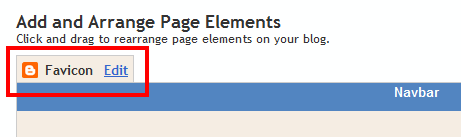
You can add a custom favicon from the Design | Page Elements tab (or, from the Layout tab if you're using the new user interface), by clicking Edit on the new “Favicon” setting above the navbar element:
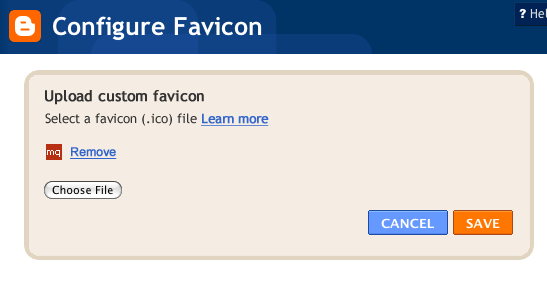
A new window will then open where you can select an image from your hard drive to replace the default favicon image. This initial launch only supports .ico files, but you can easily convert your JPEG, PNG, or other non-ico image file using your own image software. There are also many conversion tools online, and a quick Google Search brings up a handful of options such as http://www.icoconverter.com/.
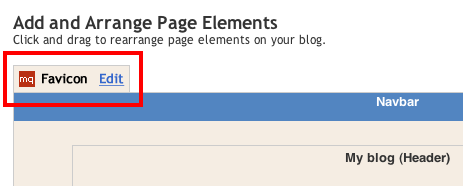
Once you’ve selected the .ico file for your favicon, click Save. Blogger will automatically resize the image to the correct dimensions, and you’ll then see the Page Elements updated with your selected favicon image:
When you save your template changes, you’ll see your newly-added favicon image displayed in your browser window or tab. That’s it!
You can add a custom favicon from the Design | Page Elements tab (or, from the Layout tab if you're using the new user interface), by clicking Edit on the new “Favicon” setting above the navbar element:
A new window will then open where you can select an image from your hard drive to replace the default favicon image. This initial launch only supports .ico files, but you can easily convert your JPEG, PNG, or other non-ico image file using your own image software. There are also many conversion tools online, and a quick Google Search brings up a handful of options such as http://www.icoconverter.com/.
Once you’ve selected the .ico file for your favicon, click Save. Blogger will automatically resize the image to the correct dimensions, and you’ll then see the Page Elements updated with your selected favicon image:
When you save your template changes, you’ll see your newly-added favicon image displayed in your browser window or tab. That’s it!
Thursday, June 2, 2011
Add the +1 Button to Your Blog
“+1” is often used as a digital shorthand for “this is pretty cool.” It’s also a way for friends, contacts, and the rest of the world to find great things on Google search. Google launched the +1 button back in March as a way to help share web content and make search more personal and relevant.
To add the +1 button to your blog, you’ll need to enable Share buttons on Blogger. To do this, go to Design | Page Elements on your Blogger dashboard, find the Blog posts area, click on Edit, and select the “Show Share Buttons” option. If you are already using Share buttons, the +1 button will automatically show up as a new share option.

By adding the +1 button to your blog, you’re providing an easy way for your visitors to recommend your posts to their friends right from your blog.
[via]
To add the +1 button to your blog, you’ll need to enable Share buttons on Blogger. To do this, go to Design | Page Elements on your Blogger dashboard, find the Blog posts area, click on Edit, and select the “Show Share Buttons” option. If you are already using Share buttons, the +1 button will automatically show up as a new share option.

By adding the +1 button to your blog, you’re providing an easy way for your visitors to recommend your posts to their friends right from your blog.
[via]
Friday, May 13, 2011
Blogger was down for more than 36 hours

If you’re one of the many people that uses Blogger, you may have noticed some issues with your blog lately – namely, that you can’t update it. Blogger users have been locked out of their blogs since Wednesday night when a behind-the-scenes maintenance update went wrong.
Users were informed on Monday that there would be an outage on Wednesday at 10 p.m. PST for an hour-long maintenance update. However, at 11 p.m., Blogger wasn’t back up. Blogger users were unable to update their blogs, and haven’t been able to for about 36 hours. Site content has been put into read-only mode, which means visitors can still come to the blog and read posts, but bloggers just can’t add any new material.
As if that wasn’t bad enough, any posts that were added after 7:37 a.m. PST on Wednesday have been removed. Google updated its Blogger Status blog at 6:07 a.m. PST Friday saying it has started restoring the posts that were temporarily removed.
Updated on Blogger Buzz, Eddie Kessler, Tech Lead/Manager, Blogger said that Blogger is back now.
"What a frustrating day. We’re very sorry that you’ve been unable to publish to Blogger for the past 20.5 hours. We’re nearly back to normal — you can publish again, and in the coming hours posts and comments that were temporarily removed should be restored. Thank you for your patience while we fix this situation. We use Blogger for our own blogs, so we’ve also felt your pain."
Thursday, May 5, 2011
Refreshed interface for image and video upload
Clicking the “photo” or “video” upload buttons in Insert image will now display a sleeker, updated picker. Blogger's also made it draggable so you can look back at the post editor if you need to. [via]


Subscribe to:
Posts (Atom)