Friday, February 4, 2011

Blogger Android App

Have you ever wanted to write up a quick blog post on the go? Now there is an easy way to do this on your Android phone! The first version of the Blogger Android App is released today. Using the app you can easily compose a post, attach a photo that you just took with your phone, and either save it as a local draft for later or immediately publish it to your blog. If you are an Android user, you can start using the Blogger app today by downloading it for free from the Android Market.


Feature highlights
  • Multiple accounts and blogs: You can easily switch between different accounts and blogs that you have author rights to. Simply choose your account and blog and you are all set to go.


  • Write and save/publish: You can write a post, assign labels, and then either save it as a draft or immediately publish it. Saving as draft is handy if you need to wait until you have Internet connectivity.


  • Photos from camera and gallery: If you see something interesting, you can take a photo directly from the app and include it in the blog post. You can also browse your gallery to include the ones you like.


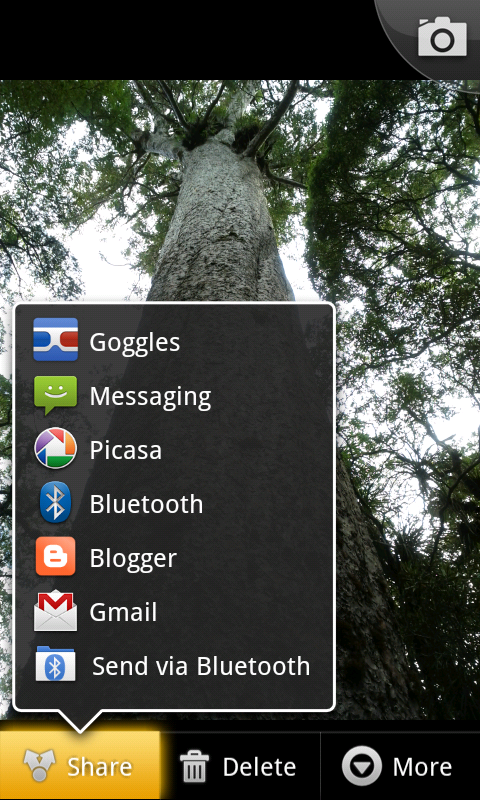
  • Sharing to Blogger from gallery or browser: Blogger is one of the available sharing options. If you come across a photo in the gallery, or a website while browsing, you can share the content to the Blogger app directly from the sharing menu.


  • Share location: You can share your location by activating the location bar and selecting the correct location. This information will be included in your post.


  • View saved/published posts: By switching to the List View, you can view all your drafts and published posts that you wrote using the app. By performing a long-press on a published post you can invoke a menu that includes the option to view your post in a browser.


Wednesday, February 2, 2011

Free Blogspot Templates: Angel Blogger template

Preview: http://angelbloggertemplate.blogspot.com/
  • From your Blogger dashboard, go to Design | Edit HTML
  • Make sure to back up your old template before install this new one by click on the "Download full template"
  • Check on the "Expand Widget Templates"
  • Now copy/paste this code to replace all the code in the HTML code section
  • Click Save Template button and you're done.

Thursday, January 27, 2011

Using the Blogger Reading List

With the Blogger Reading List, you can read all of the latest posts from your favorite blogs right on your Blogger Dashboard! Your Blogger Reading List, conveniently located under your list of blogs on your dashboard, enables you to subscribe to any blog with a feed. It will update instantly each time a new post is published on any blog in your Reading List. Additionally, you can check out our latest Blogger Buzz posts from the "Blogger Buzz" tab, and the latest Blogs of Note from the "Blogs of Note" tab.

It is simple to add a blog to your Reading List. First, click on the "Blogs I'm Following" tab under "My Reading List" on your Blogger Dashboard.


Then, click on the blue "Add" button in the bottom left corner of your Reading List.


Next, insert the URL of the blog you'd like to follow in the URL box. You can add as many blogs as you'd like by clicking on "Add another". When you have added all of your favorite blogs, click the orange "Add" button.


You'll then be given the option to either follow publicly or privately:


Once you've decided on following publicly or privately, click the orange "Follow" button and that's it! You've added all your favorite blogs to your Reading List! Now, every time one of the blogs are updated the latest post will be displayed in your reading list under the "Items" section.


Additionally, adding a blog to your Reading List will create a subscription to the blog in your Google Reader account.

How to remove a blog from your Reading List

To remove a blog from your Reading List, go to the "Blogs I'm Following" tab under your Reading List on your dashboard.


Then, click the blue "Manage" button. You will be taken to a page with a list of all the blogs that you are following. To stop following one of the blogs, click the trash can icon next to the blog you want to stop following. You will instantly be removed from following the blog and it will be removed from your Reading List.


You also have the option to change how you'd like to follow the blog (publicly or privately) from the drop-down menu.

[Guides & Tips from Blogger Help]

Monday, January 24, 2011

Free Blogspot Template: Hemingway Black

Preview: http://hemingwayblack.blogspot.com/
  • From your Blogger dashboard, go to Design | Edit HTML
  • Make sure to back up your old template before install this new one by click on the "Download full template"
  • Check on the "Expand Widget Templates"
  • Now copy/paste this code to replace all the code in the HTML code section
  • Click Save Template button and you're done.

Thursday, January 6, 2011

Free Blogspot Template: I heart Spring

Preview
  • From your Blogger dashboard, go to Design | Edit HTML
  • Make sure to back up your old template before install this new one by click on the "Download full template"
  • Check on the "Expand Widget Templates"
  • Now copy/paste this code to replace all the code in the HTML code section
  • Click Save Template button and you're done.

Saturday, December 18, 2010

Enable mobile template for your blogger blog

Many of you like to view blog posts on your smartphones. However, it can be difficult at times because of the small screen size. Today, Blogger Team announced that they launched of mobile templates for Blogger in Draft users. Initially available as opt-in functionality on Blogger in Draft, mobile templates will re-format your blogs for smartphones to enhance your readers’ viewing experience. To enable mobile templates for your blog, simply go to Dashboard | Settings | Email & Mobile tab, enable the mobile template option and then save settings.

  • Preview: Get a glimpse of what your blog will look like by clicking on the Mobile Preview button. You can also see it on your smartphone by scanning the QR-code to the right of the options.
  • Automatic redirection: All opted-in blogs will automatically be redirected to the mobile view when accessed from a smartphone.
  • Template support: Blogger is initially supporting 6 variants of the Simple template and 6 variants of the Awesome template. If you have used one of these 12 templates through our Template Designer, your mobile view will be rendered in the same style as your desktop view (other template variants will be rendered as Simple). Some gadgets are also supported.

Tuesday, December 14, 2010

Free Christmas header images for your blogger blogs

Here are 35 free Christmas header images for your blogger blog in this Holiday Season. Click here if you don't know how to adding an image to your blog header.


Posting a video from YouTube to your blog

It’s as easy to add a video to your blog from YouTube. While you are watching a YouTube video, click “Share” button, and you will see Blogger as one of the places you can share the video to. Click on Blogger, and you’ll see the familiar BlogThis! mini post editor -- all you have to do is to select a blog (if you have more than one blog, that is), fill out some content, and then Publish the post.